

Help Topics On Personal Notes File 02.03
NOTEFILE is developed by Fedon Kadifeli. This is a utility for keeping information in the form of personal notes. For example, you can keep people’s addresses, phone numbers, email addresses, etc. It is similar to the old Windows CARDFILE.EXE program and it can read CRD files created by that program. You can also use this program to keep personal notes, just as you can use Windows NOTEPAD.EXE for this purpose. However, this program allows you to organize your data and access any information you need more easily.
Information is stored normally in NTF format. The NTF format stores data in compressed binary format. But you can save to and read from TXT files also. You can optionally encrypt your .ntf files.
NOTEFILE has an integrated phone dialer similar to, but better than the one in CARDFILE.
NOTEFILE allows the user to extend its functionality by using Pascal scripting and external commands. Pascal scripts stored in a special script file and external commands stored in a special command file can be executed as user-defined NOTEFILE menu commands.
Another useful feature is the ability to execute single system commands stored as strings in your data file.
This program was written mainly to overcome some limitations of CARDFILE. For example, in CARDFILE the size of a card cannot be larger than 12×40 characters including the index line. In NOTEFILE there is no such limitation. The main philosophy behind this program is its simplicity and ease of use.
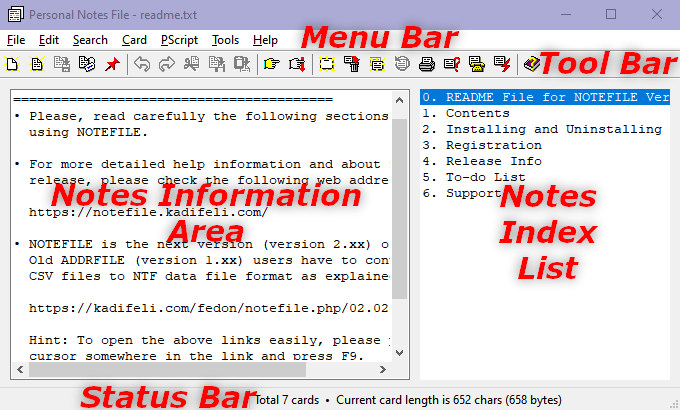
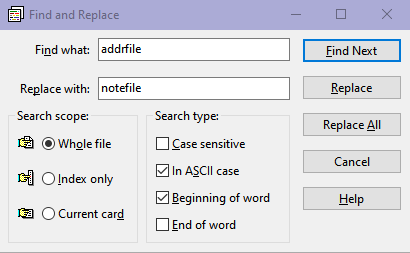
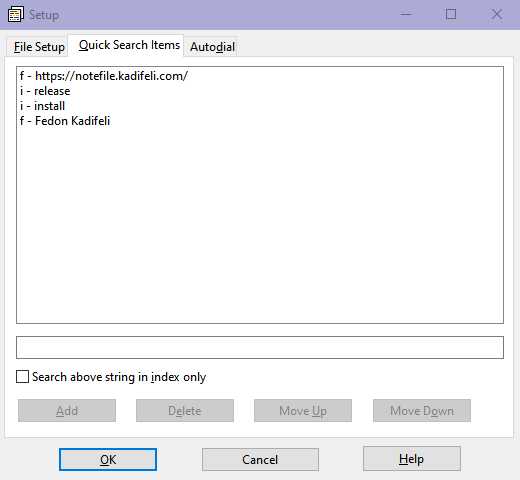
NOTEFILE runs on 64-bit Microsoft Windows systems such as Vista, 7, 8, 10, 11, and on Linux systems such as Ubuntu. Versions for 32-bit legacy Windows and Linux environments will also be provided for users who cannot run 64-bit programs, but these are not fully supported. NOTEFILE accepts an optional parameter indicating the file to be opened and edited. The window displayed when you run the application contains a menu and tool bar at the top, a status bar at the bottom, a card index list at the right, and a multiline edit box at the left (the selected card’s contents). The text displayed within the edit box at the left is related to the card selected from the index list at the right. The index value of a card is the first line of the card data. When you start with an empty notes file, the first thing you must do is add a new card and then edit the contents of this card. Then you need to save your notes file to disk.
The relative widths of the notes information area (card contents) and
the notes index list can be adjusted by dragging the area between
them with the left mouse button. If you double-click this area,
the sizes will be adjusted to their defaults. The positions of the notes
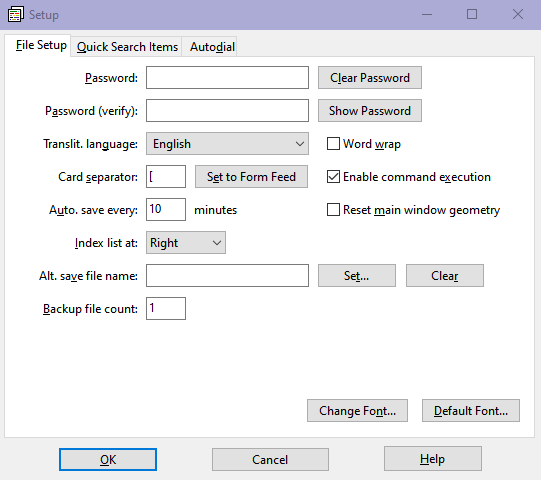
information area and the notes index list can be changed by using the
File Setup... menu option. There is also an option in
the File Setup dialog box that will allow you to Reset main window
geometry
. In case you mess it up badly, use the following key combination:
(Esc,)
Alt+F,
E,
Alt+M, and
Enter.
The program menu options are listed below:
There are also pop-up menus that give you context-sensitive menu options. The available options are the same as those listed above. To see the pop-up menus, press the right mouse button while holding the mouse pointer either on the card (notes) index list at the right or on the multiline notes information area (edit box) at the left.
The toolbar also has some icons for frequently used menu options. To see a short explanation of these icons, i.e., the menu options they correspond to, place the mouse pointer on any of these icons and wait for a help hint to pop up.
For solutions to some common problems, see Troubleshooting and Frequently Asked Questions.
Important:
Please read the
Disclaimer before using this software.