

Find and Replace... Command
Purpose
The Find and Replace... command is used to search and replace a string in the notes file.
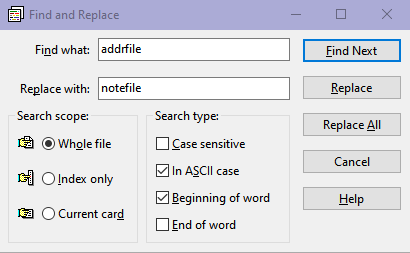
To search and replace a string
- From the Search menu, choose Find and Replace....
- The Find and Replace dialog box will open.
- In Find what enter the string you want to search for.
- In Search scope select the range you want to search:
- If you want to search for a string only in the index lines (the first lines of every card), select Index only.
- To do a complete search on the entire contents of all the cards, select Whole file.
- If you want to search for a string only in the currently open card, select Current card.
- In Search type select the type of search:
- Select Case sensitive, if you want to search for a string matching exactly in case with the string you entered.
- Select In ASCII case to convert all the characters in the search string and in the range being searched to their closest ASCII equivalents (whenever possible) and do the matching this way.
- Select Beginning of word so that the search string will match only the first letters of a word. A word is defined as a string containing letters (including international letters) and numerals (0-9).
- Select End of word so that the search string will match only the last letters of a word.
- You can select both Beginning and End of word, for a whole word match.
- Click Find Next. If a matching string is found in the range you have chosen, the card containing that string will be opened and the matching string will be selected.
The Find and Replace dialog box is left open. You can click Find Next, to find the next occurrence. The search starts from the next character after the cursor and proceeds circularly within the range you have chosen. That is, if you have chosen Whole file or Index only and the end of the notes file is reached, it continues from the start of the file. If you have chosen Current card and the bottom of the card is reached, it continues from the top of the card.
If you want to replace the matched string with a new one, enter a replacement string in Replace with and click Replace. To replace all occurrences of the searched text at once, click Replace All. However, Replace All may not replace every match if the replacement occurs in the index of a card. When the index text of a card changes, the card list may be reordered. If this happens, the search (and replace) may continue from a different position, and some cards may be skipped.
Note that the Replace command cannot be undone once executed.
Keyboard shortcut
Ctrl+F
Prompt messages
- Word boundary search is slow. Do you want to spend more time?
- When you do word boundary search (i.e., when you have selected either Beginning of word or End of word or both) and the search takes longer than 5 seconds, the above message will be displayed. You can click Yes to continue the search or click No to abort it.
- “Replace All” cannot be undone. Do you want to continue?
- The Replace All button, especially when run for the Whole file can be catastrophic. Please save your file before attempting such an operation!
- Number replacements done so far. Do you want to continue?
- During a Replace All operation, when more than 50 replacements are completed, you will be prompted to continue or stop the operation. Please note that even when you stop the operation, the replacements that have already been completed will not be undone.