

Quick Search Items... Command
Purpose
The Quick Search Items command is used to add, modify, or delete quick search strings.
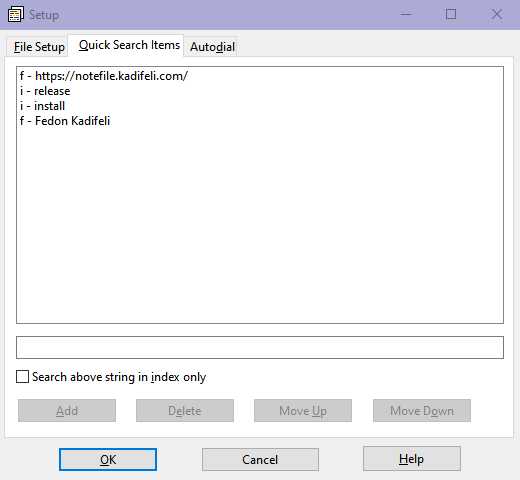
To modify quick search items
- From the Search menu, choose Quick Search Items.... The Setup dialog box opens.
- Use the controls in the Quick Search Items tab to add, modify, or delete quick search strings. You can define up to 25 quick search strings. These strings will be displayed at the bottom of the Search menu in the main window.
- If you are satisfied with the definitions you made, click OK to save the results and update the Search menu list. Otherwise, click Cancel to discard your changes.
To search for a specific string you defined, select the appropriate menu
item (1 through 25) from the Search menu. If that item
is preceded with an f
, the search will be done on the
entire file (as if the Whole file option was selected in the
Find and Replace... dialog);
if it is preceded with an i
, the search
will be done only on the notes index list (as if the Index only
option was selected in the Find and Replace... dialog).
Notes:
- In previous versions of NOTEFILE (i.e., older ADDRFILE versions), Quick Search Items were stored in the Windows Registry. Starting with version 1.14, they were also stored in the currently open file.
- NOTEFILE versions 2.00 and above do not store Quick Search Items in Registry. They are stored only in the .ntf file, allowing you to specify different Quick Search Items for each of your notes files.
- Remember to save your .ntf file after you update your Quick Search Items. NOTEFILE will prompt you for this during exit.
Keyboard shortcut
F6